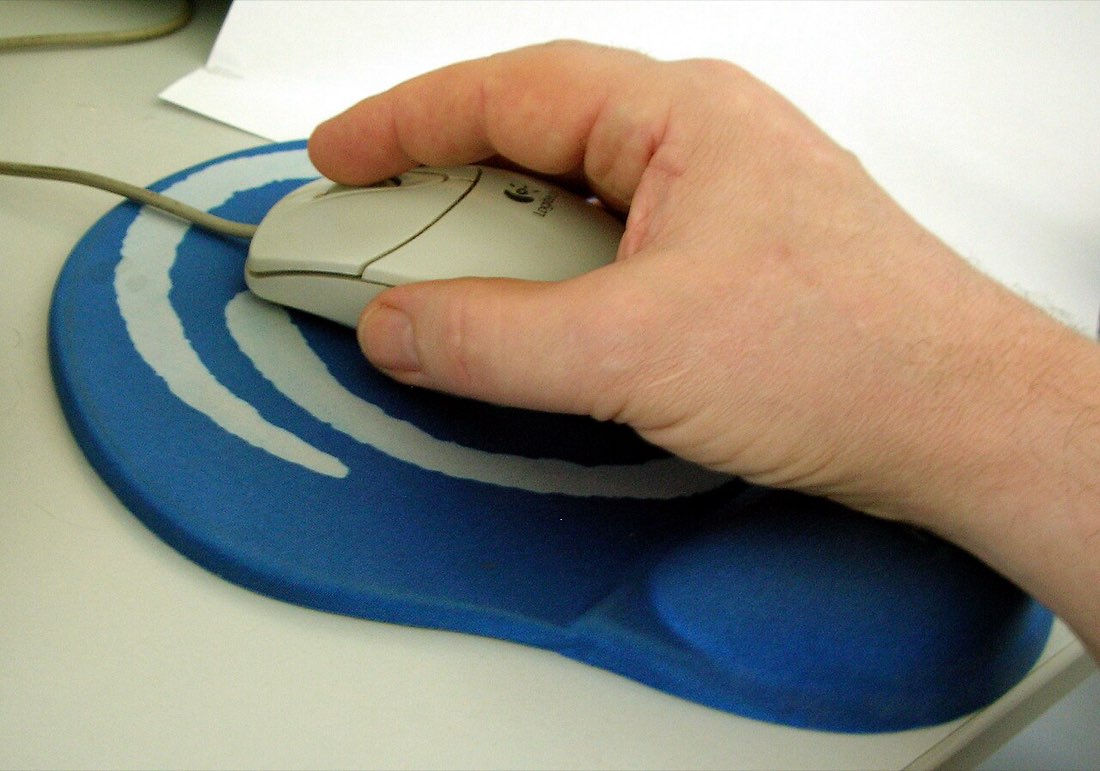
There are three common ways to hold a mouse: palm, claw and fingertip. Most people use one without thinking about it, often a mix. Grip affects how the clicking finger moves, how much control you have over the pointer and how tired your hand gets. Knowing which one you use makes it easier to pick a mouse that fits.
Palm grip
In a palm grip, the whole hand rests on the mouse and the fingers lie flat along the buttons. It is relaxed and comfortable for long sessions. Clicking happens with the finger flat, which is smooth but not the fastest motion, and fine pointer movements come mainly from the wrist and arm.
Claw grip
In a claw grip, the palm rests at the back of the mouse while the fingers arch, with fingertips on the buttons. The arched finger can tap quickly, which many fast clickers like. It gives a good mix of control and speed but can tire the hand faster than a palm grip.
Fingertip grip
In a fingertip grip, only the fingertips touch the mouse and the palm floats above it. This gives the most precise small movements and quick clicks, and suits light mice. It is the most demanding grip to hold for long periods, and some people find it tiring.
| Grip | Speed of clicking | Pointer control | Comfort over hours |
|---|---|---|---|
| Palm | Moderate | Arm and wrist driven | High |
| Claw | Fast | Balanced | Moderate |
| Fingertip | Fast | Fine finger control | Lower for many people |
How grip affects special techniques
Jitter clicking usually works best with a claw or relaxed palm grip that anchors the mouse with the thumb and ring finger. Butterfly clicking needs room for two fingers on the button, which suits palm and relaxed claw grips. Drag clicking depends more on the finger and button surface than on grip.
Matching grip to mouse
Palm grip users usually prefer longer, fuller mice with a high back. Claw grip suits medium mice with a pronounced hump near the back. Fingertip grip suits shorter, lighter mice. If a mouse feels awkward, it may simply be the wrong shape for your grip. See choosing a mouse for more.
Finding your natural grip
- Rest your hand on the mouse without thinking
- Note which parts of the palm touch
- Notice whether fingers are flat or arched
- Try each grip for a few minutes
- Keep the one that feels relaxed
Comfort tips for every grip
- Keep the grip light; squeezing tires all grips.
- Keep the wrist roughly straight and supported.
- Take short breaks to open and stretch the fingers.
- If one grip starts to ache, switch for a while.
Changing grip occasionally is not a bad thing. Many people use a palm grip for everyday work and a claw grip for games.
Is your grip working for you?
- No pain after an hour
- Fingers rest naturally on the buttons
- Pointer stays steady when clicking
- Mouse size suits your hand
- You can relax your grip between actions
Testing grips with click tests
Try ten-second rounds on the CPS test with each grip and compare your averages. Also notice how steady the pointer is: on MouseTally, clicks that drift off the dial do not count, so a grip that keeps the mouse still scores better.
Adapting a mouse to your grip
Small changes can make a mouse suit your grip better. Grip tape on the sides helps claw and fingertip users hold the mouse with less pressure. Some mice come with interchangeable side panels or adjustable weights. If a mouse feels slightly too small for a palm grip, many people find that shifting the hand a little further back helps.
These adjustments are cheap to try before deciding to replace a mouse.
Grip and long sessions
Grips that feel fast for a few minutes can become tiring over hours. Pay attention to how your hand feels at the end of a long session. If the fingers ache or the hand cramps, try relaxing into a more palm-like grip for everyday work and save a claw or fingertip grip for moments that need precision. Switching between grips during the day spreads the load across different muscles.