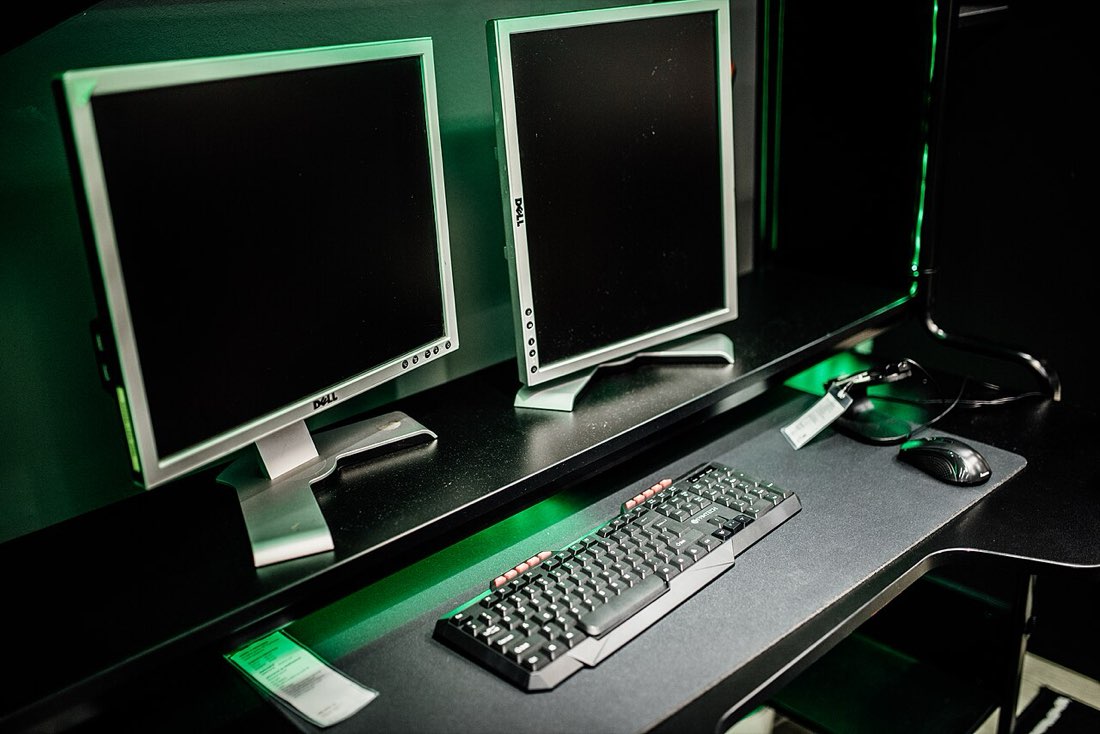
Comfortable clicking starts long before the hand touches the mouse. Chair height, desk height, where the mouse sits and where you look all affect how relaxed your arm and hand can be. A good setup makes fast clicking steadier and long sessions more comfortable.
Chair and desk height
Sit with your feet flat on the floor or a footrest and your knees roughly level with your hips. Adjust the chair so that, with your shoulders relaxed, your forearm rests level on the desk or armrest. If the desk is too high, the shoulder lifts and tension travels down the arm. If it is too low, you lean forward and the wrist bends.
Setting up in five steps
- Feet flat, knees about level with hips
- Forearm level with shoulders relaxed
- Mouse close, beside the keyboard
- Screen top near eye level
- Light from the side, not behind the screen
Mouse placement
Keep the mouse close to the body and roughly in line with the shoulder. Reaching sideways around a wide keyboard puts the shoulder and wrist under strain. Some players use a compact keyboard to bring the mouse closer. The forearm should rest on the desk or an armrest rather than hovering.
| Problem | Adjustment |
|---|---|
| Shoulder ache | Lower the desk or raise the chair; bring mouse closer |
| Wrist bent upward | Lower the mouse surface or use a slimmer mouse |
| Forearm hovering | Add armrest support or move closer to the desk |
| Neck strain | Raise the screen to eye level |
Screen position
Place the screen about an arm's length away, with the top roughly at eye level. Looking down for hours strains the neck, and that tension often spreads into the shoulders and arms. For multiple screens, put the one you use most directly in front.
Lighting and breaks
Glare and dim rooms make the eyes work harder, and people often lean forward without noticing. Light the room evenly and avoid bright windows directly behind the screen. Every 30 to 45 minutes, look away, stand up and move your hands and shoulders.
For click-speed practice
When you attempt a fast round, sit upright with the forearm supported and the mouse anchored by a light grip. A pad with some friction helps keep the mouse still; see mouse pads and surfaces. Keep the session short and follow the habits in our guide to hand and wrist strain.
Quick setup check
- Feet supported
- Forearm level and supported
- Mouse close and in line with the shoulder
- Screen at eye level
- Regular breaks planned
Gaming chairs and gadgets
Specialist chairs and accessories can help, but a basic adjustable office chair, a correctly placed mouse and regular breaks deliver most of the benefit. Spend first on things that fix a specific problem you notice.
Laptops and small spaces
Laptops make good posture difficult, because the screen and keyboard are joined. For long sessions, raising the laptop on a stand so the screen is near eye level and using an external keyboard and mouse brings the setup much closer to a desktop. In a small room, a compact keyboard leaves space to keep the mouse close to the body.
If you game on a sofa or bed, keep sessions shorter and support the arms with cushions so the shoulders can relax.
Checking your setup over time
Bodies and furniture both change. A chair can sink, a desk can be moved, and new equipment can change where things sit. Every few months, run through the quick setup check again. Discomfort that appears gradually is often a sign that something in the setup has drifted, and it is easier to correct early than after months of strain.